Becoming a SuperUser
After playing a couple of times with the existing Statements Set one might want to:
Create a “private” session just for their Group – so that only their Participants would appear in the Results Page of the Game.
Create your own Statements Sets.
The Game Administration Tool supports these 2 points, and more.
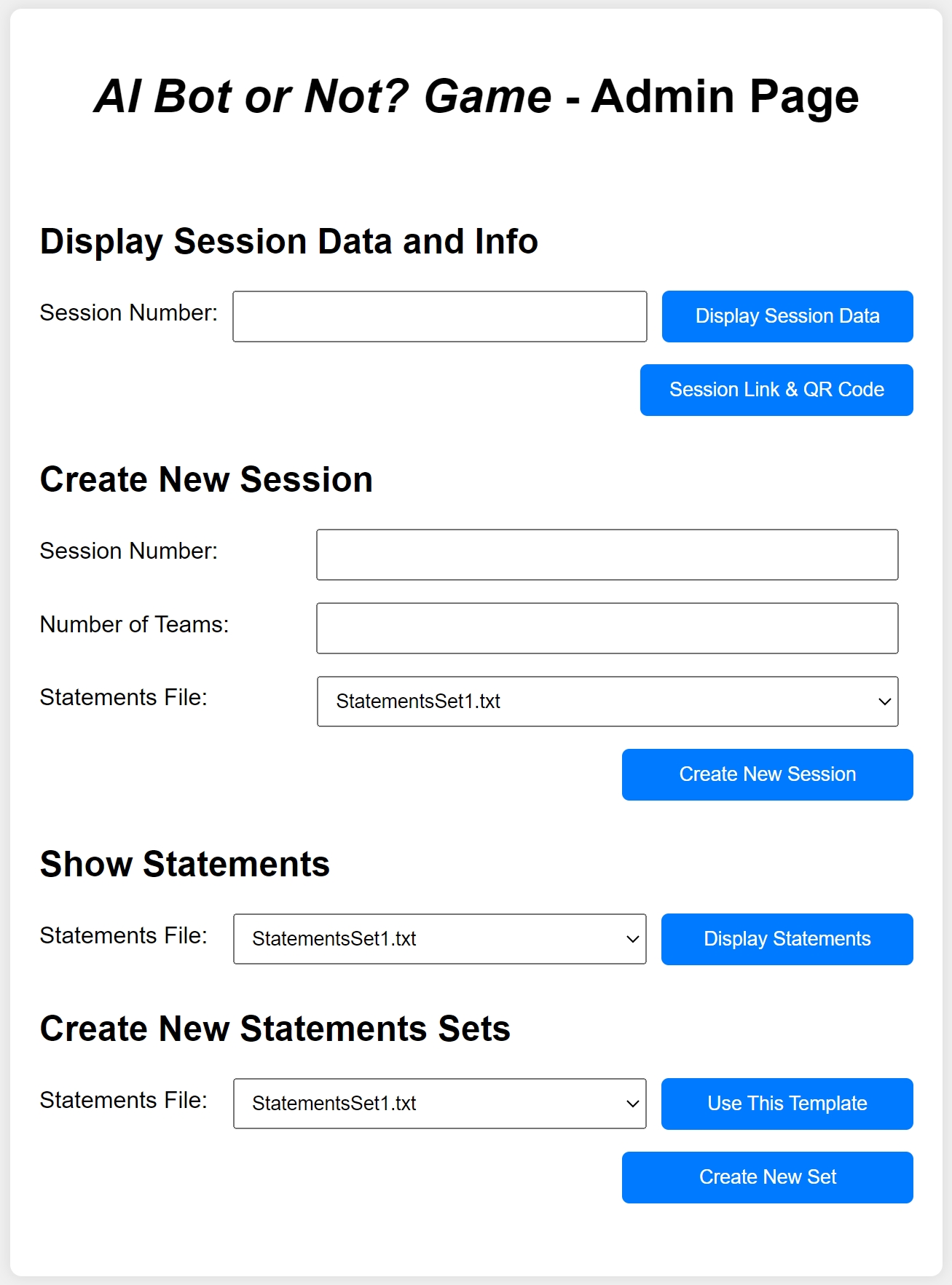


Create Your Own "private" Sessions
You can create your own session very rapidly in the “Create New Session” section of the Game Administrator Tool:
Specify a Session Number just for your Participants.
Indicate how many Teams you will have (if you are unsure, just put a high number like 100).
Indicate which Statements Set you want to use (selecting from the popup list).
Click on the “Create New Session” button.
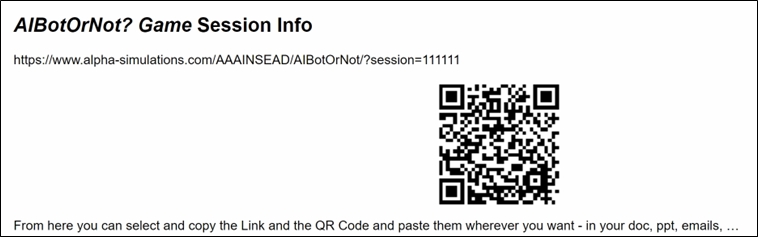
You will now be able to use the “Session Link & QR Code” button to automatically display the link (and QR Code) to communicate to your Participants, so that they can enter directly your Session, as displayed in the figure below.
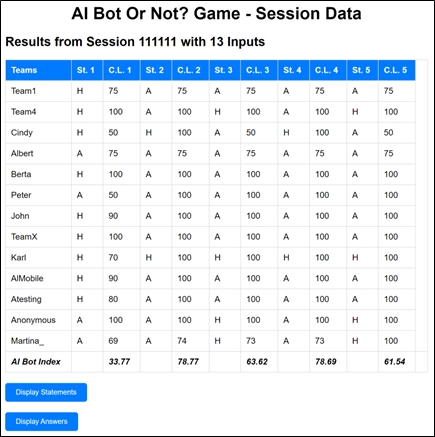
During the Session, once your Participants have played, the Game Administrator Tool allows you to display the Results, by inserting your Session Number and clicking on “Display Session Data” button to display the inputs provided by your Participants, as displayed in the figure below.

Explore and Create New Statements Sets
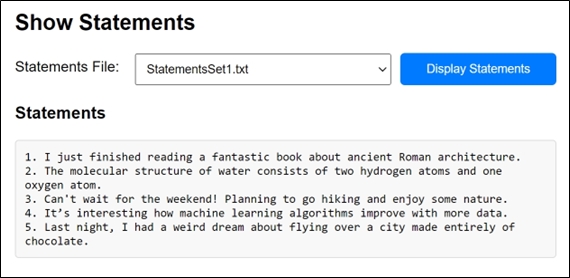
Currently, there are only a few Statements Sets available, but more will be added soon. With the Game Administrator Tool, you can inspect the existing Statements Sets by clicking on the “Display Statements” button, as displayed in the figure below.
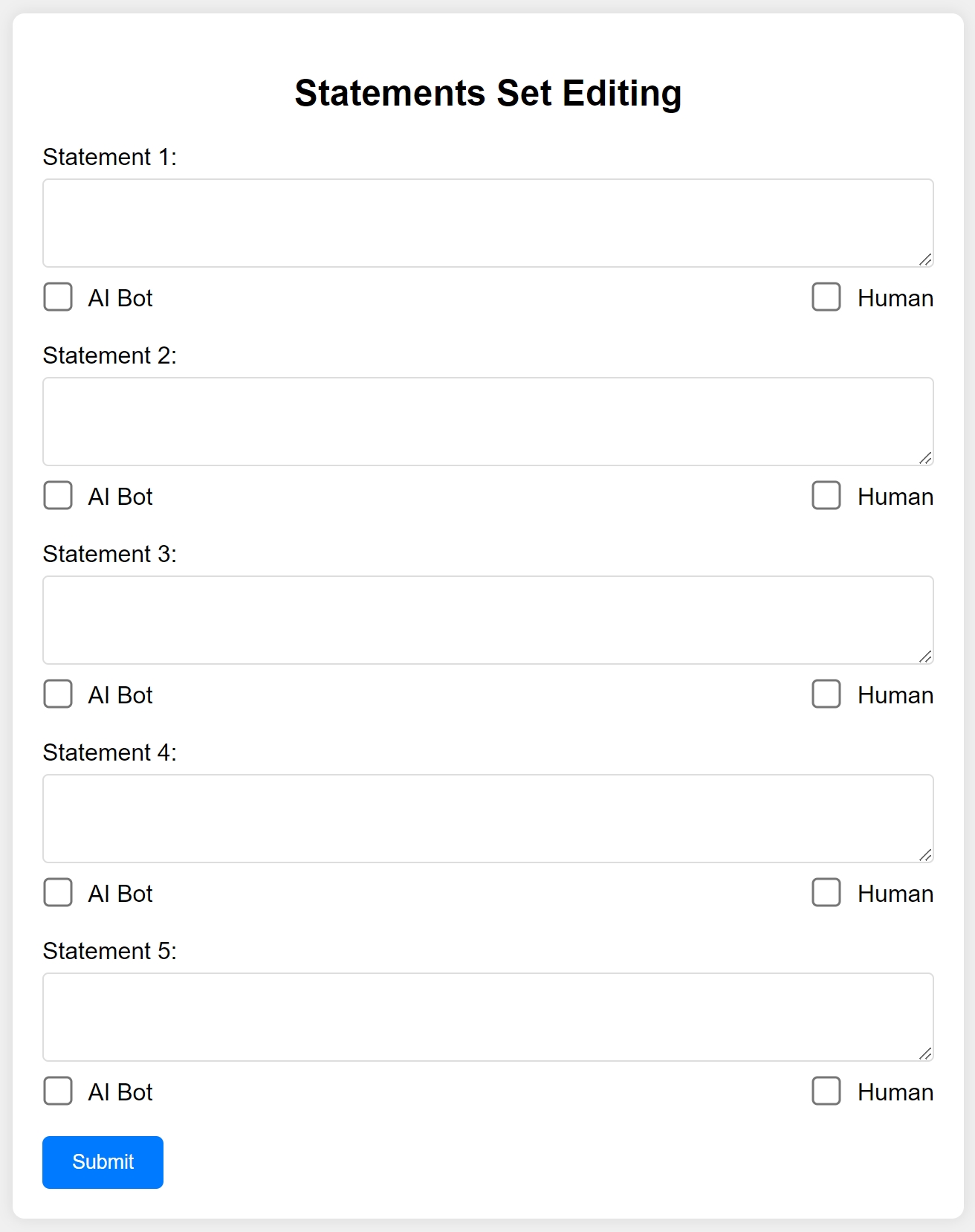
The Game Administrator Tool also allows you to create new Statements Sets by clicking on the “Create New Set” button. A form like in the figure below will appear and allow you to insert your own 5 Statements (and the corresponding correct answers). To facilitate the task, you can use the “Use This Template” button to select an existing Statements Set. In this case, the Statements boxes in the form will be automatically pre-filled.
To access the Game Administration Tool, send an email to albert.angehrn@insead.edu.